
Creating charting templates
If you frequently use the same collection of chart items in your patient charts, you can group them together under a Template, and select it when creating a new chart to automatically include all its items in the chart.
Note: If you are signed in as the clinic manager, you will have the option to create charting templates "For the clinic account" that can be accessed by anyone who is part of your clinic, or "For my personal account" that will be private to you. If you are not the clinic manager, you can only create charting templates for your personal account.
To create a chart template, click on the Settings tab in the top nav bar, and then on Templates under the Charting settings section. On the Templates page, click on New template.
Building the template
After clicking on New chart item, fill out the form with the name of the template and click on Submit. In the template page, click on Add a chart item and then select which chart item you would like to add to the template.

Using pre-built charting templates
Charting templates include a collection of chart items frequently used together. For convenience, Embodia has created numerous charting templates.
To access the pre-built chart templates, go to the Templates page by clickking on the Settings tab in the top nav bar, and then on Templates under the Charting settings section. On the templates page, click on Browse pre-built templates:

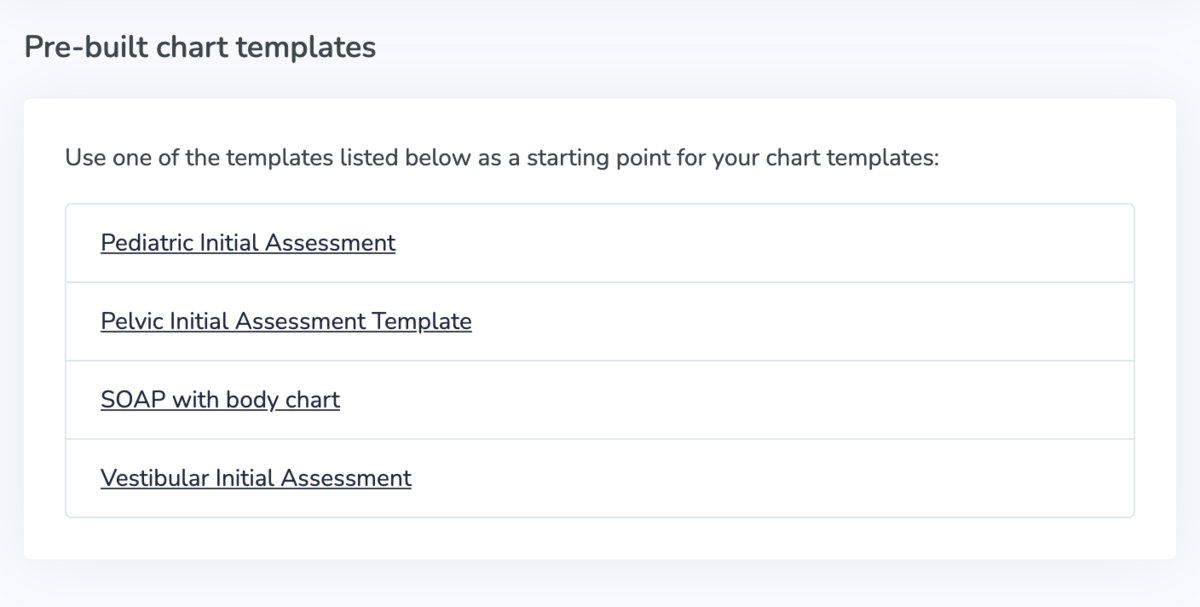
Select the template you would like to use for your account from the list of pre-built templates. Below are the chart note templates currently built-in to Embodia.
You will then be able to edit the template and preview it.
You can:
- Rearrange the order of items in the template by clicking on the 3 lines beside the chart item name,
- Delete the chart item from the template by clicking on the red trash bin,
- Add additional chart items by clicking on Add a chart item, and
- Preview the template by clicking on Preview.
