
Setting up your payment methods
The actions described in this lesson require a Manager permission on your clinic.
Payment methods overview
Payment methods in Embodia allow you to collect and record payments from patients, whether in-person or online.
You can create multiple payment methods (e.g., cash, e-transfer, Venmo, credit card, etc.), control how they appear on receipts, and connect them to Stripe to securely accept card payments.
This guide walks you through:
- Creating and managing payment methods
- Connecting Stripe for credit card payments
- Accepting payments online and in person
- Saving patient card details for future use
If you'd like to learn how to accept online credit card payments please visit the guide: Accepting credit card payments
Setting up your payment methods
To begin collecting payments, you’ll first need to create one or more payment methods.
How to create a payment method
- Go to Billing > Settings > Payment methods
- Click Add payment method

Payment method fields
Enter the name of the payment method (the name will be visible on the receipts that you generate for your patients) and, optionally:
- Internal name (optional): For internal use only (e.g., “Stripe – Online”)
- Payment instructions (optional): Instructions shown on unpaid invoices (e.g., how to send an e-transfer)
Each payment method field determines how payments are recorded and displayed in Embodia.

Accepting non-card payments
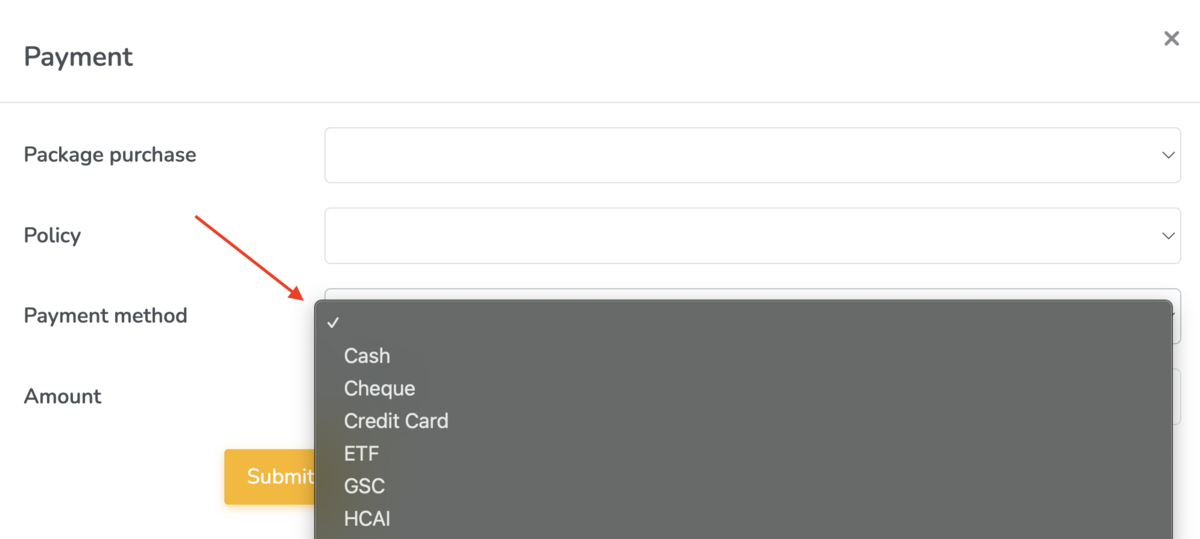
Embodia allows you to set up as many payment methods as you like. You can then select the appropriate payment method when creating an invoice.
Tip: If a patient typically pays with the same payment method, you can make this their default payment method by making use of the clinical case feature.
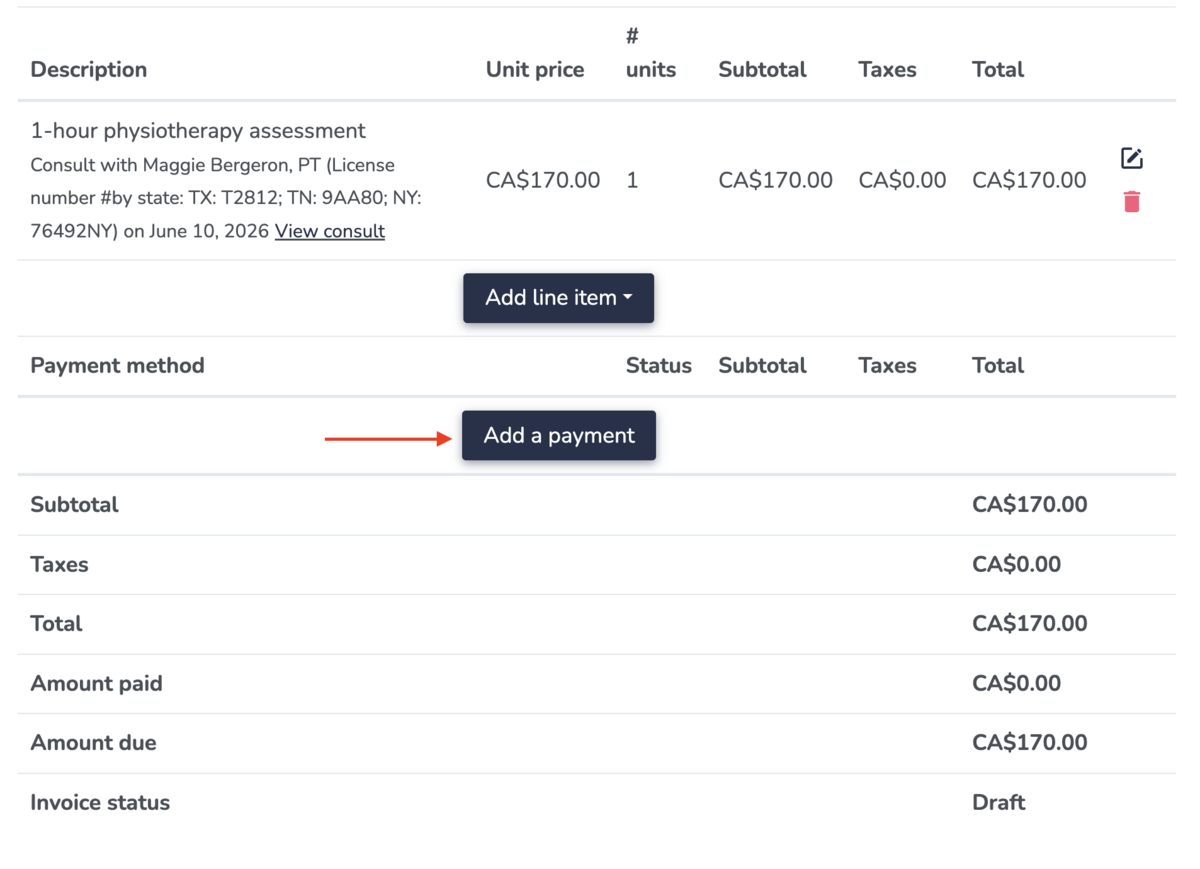
From the invoice page, click Add payment
Then select the appropriate payment method from the drop down list.
Accepting card payments
You can accept card payments directly through Embodia. Embodia integrates with Stripe, an online payment processor. Setting up a Stripe account is free, and you can find the pricing on their website.
Note: Embodia does not take any processing fees from credit card payments made via Embodia's Practice Management System. The processing fees for credit card payments are taken by Stripe.
Connecting your Stripe account
To connect your Stripe account to Embodia, click on the payment method you want to connect. On the payment method page (under Billing > Settings > Payment methods), click on Connect your Stripe account to this payment method:

This will redirect you to Stripe where you can sign in to your account and complete the connection process:

Once your Stripe account is connected, you can collect card payments directly through Embodia. Learn more in the guide, Accepting credit card payments
Accepting in-person card payments
If you have a Stripe Terminal, you can integrate it with Embodia to accept in-person payments.
Please note: we currently only support the BBPOS WisePOS E terminal reader with the server-driven integration from Stripe.
Once this feature has been enabled for your account, and once you've connected a payment method to Stripe (as outlined at the beginning of this guide), you can connect a BBPOS WisePOS E terminal reader to your Stripe account. To learn more about how to set up a terminal reader on Stripe, please follow the instructions outlined here and here.
Step-by-step terminal setup
- Start by setting up a new payment method and connect it to Stripe.
Important: The payment method for your terminal must be new (or unused). For a successful terminal setup, there must not be any payments associated with the payment method you are connecting.
2. Then, from the payment method page on Embodia, click on the link in the terminal reader notice.

3. In the pop-up, select the terminal reader from the dropdown and then click on Connect terminal.
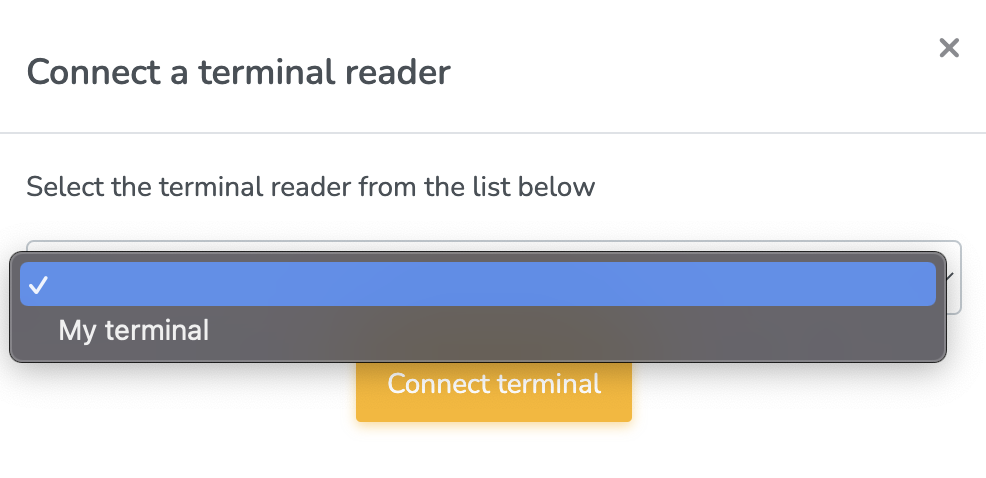
Your terminal is now connected. The next time you generate a patient invoice and select this payment method, Embodia will communicate with the terminal reader and charge the correct amount based on the amount entered on the invoice page.
Saving the card details from an in-person payment
By default, when a patient makes a card payment using the terminal, the card will not be saved to their cards on file. If you wish to store the card under the cards on file so you can use it later, you can override the default behaviour by clicking on the link in the banner.

It is important to note the following:
- It is important to get the patient's consent that you would like to store their card details for potential use at a later date.
- Not all card issuers allow saving the card details from an in-person payment. If the card issuer does not allow it, the card will not be saved to the cards on file.
Related guides
For more details, explore related guides on invoicing and billing workflows. Once your payment methods are set up, you can begin:
- Creating invoices
- Accepting credit card payments online
- Set up packages and memberships
- Tracking revenue within Embodia